SansadSaar — User guide
A tour of the eight corpora SansadSaar surfaces, how to set up AI, how the privacy model works, and what costs (if any) come with each option.
On this page
- What is SansadSaar?
- The eight corpora
- The interface at a glance
- Browse, search, filter
- Reading a report
- Setting up AI
- Generating an AI summary
- Asking questions about a report
- Web-search enrichment for Ask
- Exporting metadata and summaries
- Deep search (optional)
- Privacy & what's cached locally
- Costs & limits — what's free, what isn't
- Troubleshooting
1. What is SansadSaar?
A single-file browser app that opens up eight corpora of India's parliamentary and executive record — searchable, filterable, and (optionally) AI-readable in the same UI. Each corpus is scraped on its own schedule by an open-source GitHub Action and mirrored as static JSON on Cloudflare Workers. The app you're using runs entirely in your browser — there is no SansadSaar server, no account, no analytics.
Three things make it different from the upstream ParliamentWatch (whose Python scraper foundation powers the oversight corpora):
- It runs as a single HTML file — no Python, no install, no terminal.
- AI summaries and Q&A can run on your device (Gemma / Ternary Bonsai over WebGPU) — no API key required.
- If you want a stronger model, you can plug in your own API key (Anthropic, OpenAI, Gemini, Groq, OpenRouter, Ollama, or any OpenAI-compatible endpoint).
2. The eight corpora
The corpus chip strip near the top groups the eight datasets into four thematic buckets. Click any chip to switch the list and filter row to that corpus.
| Group | Corpus | What's in it |
|---|---|---|
| Oversight | DRSC | Reports from India's 24 Departmentally Related Standing Committees — 16 chaired by the Lok Sabha, 8 by the Rajya Sabha. The original SansadSaar corpus. |
| CAG | Audit reports published by the Comptroller & Auditor General of India. | |
| FC | Financial Committee reports — Public Accounts, Estimates, and Public Undertakings Committees. | |
| Legislation | Bills | Bills introduced or pending in Parliament, sourced from PRS Legislative Research. |
| LC | Law Commission of India reports — primary recommendations on legal reform. | |
| Proceedings | Debates | Lok Sabha and Rajya Sabha debate reports — full text where the upstream provides it. |
| Questions | Starred and unstarred parliamentary questions from both houses. | |
| Executive | Gazettes | Central Gazette of India (Weekly + Extraordinary), pulled from the archive.org gazetteofindia collection with its bilingual OCR. |
Header counts (X reports · Y with text) re-bind to whichever chip is active. The chip pill on the right ("DRSC: updated 4 hours ago") shows how fresh the mirror data is for that corpus.
3. The interface at a glance
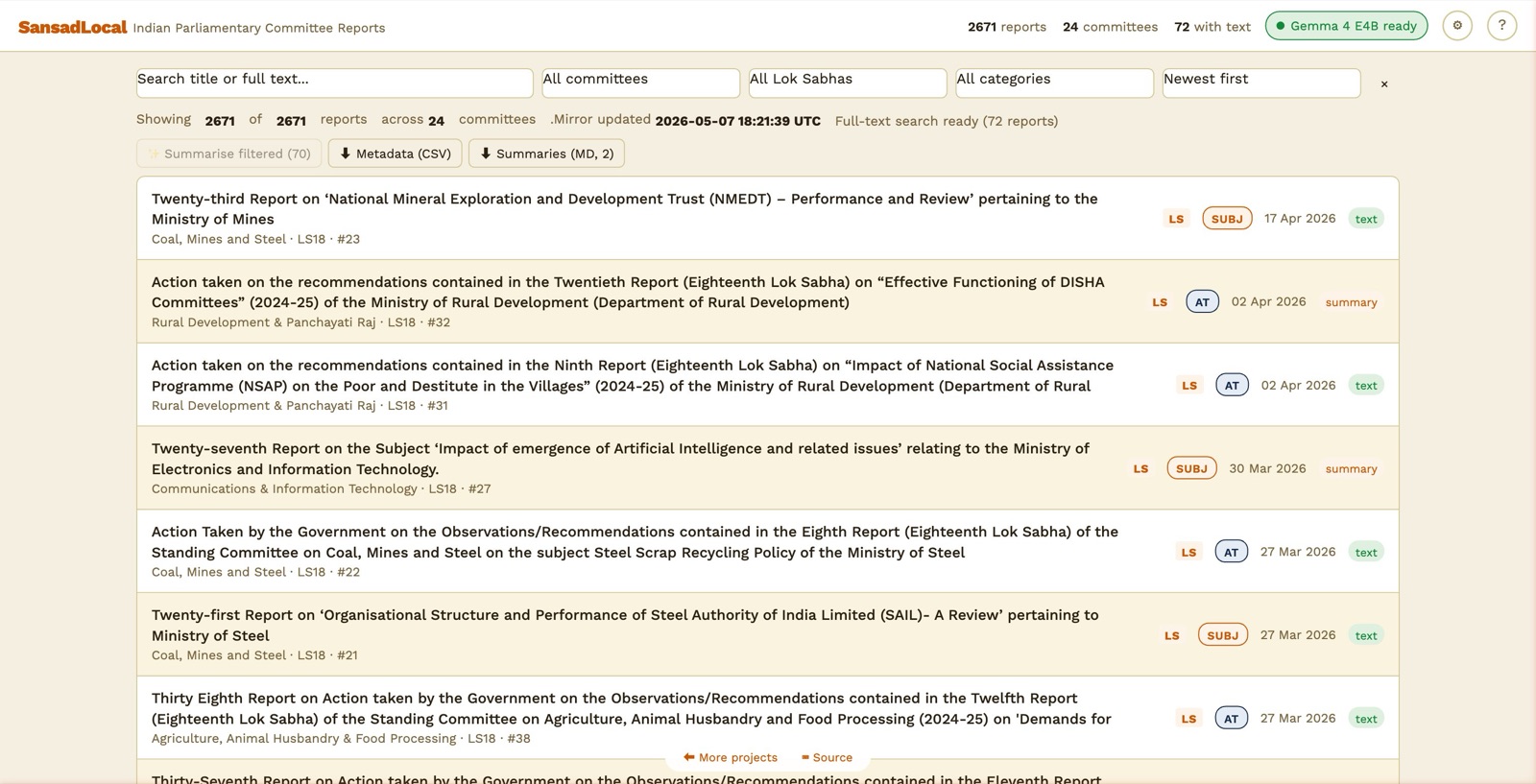
Main view — top header, corpus chip strip, filters, sortable report list.
The header runs across the top:
- Header stats reflect the active corpus. Click a different chip and the numbers rebind to that corpus.
- AI status pill tells you what AI is configured. Click it to jump to Settings.
- AI off — nothing configured yet
- Loading model… — local model downloading or warming up
- Gemma 4 E2B ready — local model ready to use
- BYOK: Anthropic — your API key configured
- Settings (⚙) — pick the AI mode, load a model, configure web search, manage per-corpus deep-search toggles.
- Help (?) — what you're reading is the long-form version of that modal.
Below the header is the corpus chip strip: eight chips grouped under four labels (oversight, legislation, proceedings, executive). The active chip is highlighted; everything below it — filter row, list, status badge — belongs to that corpus.
4. Browse, search, filter
The filter row is corpus-aware — each corpus emits the filters that make sense for it. The shapes you'll see:
| Corpus | Filters it shows |
|---|---|
| DRSC | Search · committee (24 options) · Lok Sabha term · category (DFG, AT, SUBJ, BILL, ASSURE) · sort |
| CAG | Search · ministry · sector · year · sort |
| FC | Search · committee (PAC / Estimates / PUC) · Lok Sabha term · category · sort |
| Bills | Search · house · status · year · sort |
| LC | Search · year · sort |
| Debates | Search · house (LS / RS) · session · sort |
| Questions | Search · house · session · sort |
| Gazettes | Search · category (Extraordinary / Weekly) · ministry · language (EN / HI / EN+HI) · year · sort |
The Search box does substring match against titles by default. Open any report's Full text tab and that text becomes searchable too. To pre-fetch every extracted text for a corpus and search across its full body content, toggle Enable full-text search across <corpus> in Settings (size estimate shown — uses local cache after first fetch).
Each row also carries a status badge on the right:
- metadata — only metadata is published; no extracted text yet.
- text — full text has been extracted by the mirror and is searchable.
- summary — you've generated an AI summary that's cached in your browser.
Gazettes additionally carry an EN+HI badge when both English and Hindi text exist in the same record (the archive.org OCR is bilingual).
5. Reading a report
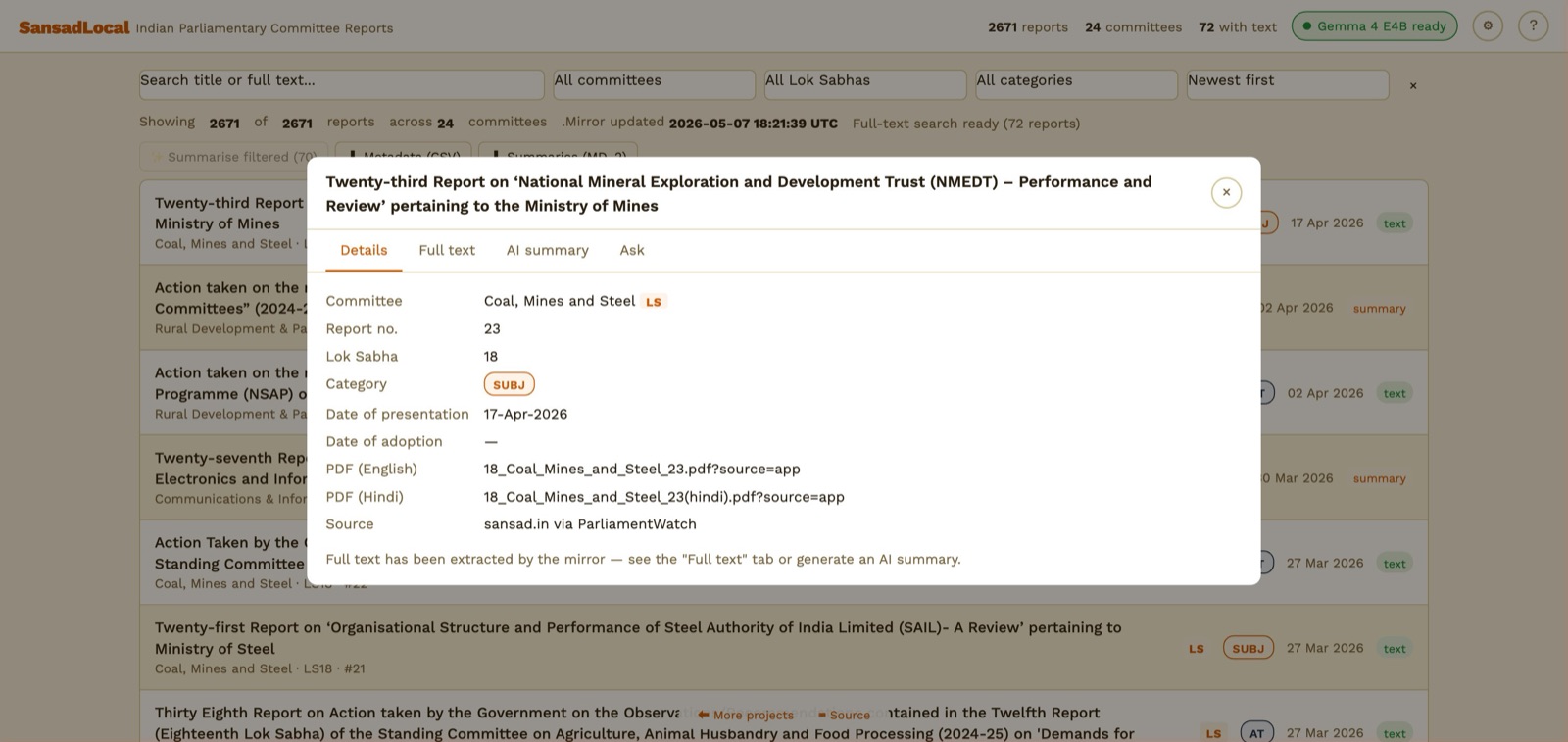
Report dialog — Details tab. PDF links go straight to sansad.in.
Click any row to open a four-tab dialog:
- Details — committee, report number, dates, links to the English and Hindi PDFs on sansad.in, source attribution.
- Full text — the extracted text from the PDF (when available). Searchable, scrollable.
- AI summary — generate a plain-English briefing of the report. Cached in your browser after the first run.
- Ask — chat with the report. The model answers based on the report's text (and your cached summary, when one exists).
6. Setting up AI
Click the ⚙ Settings icon in the header (or the AI status pill). Pick one of two modes:
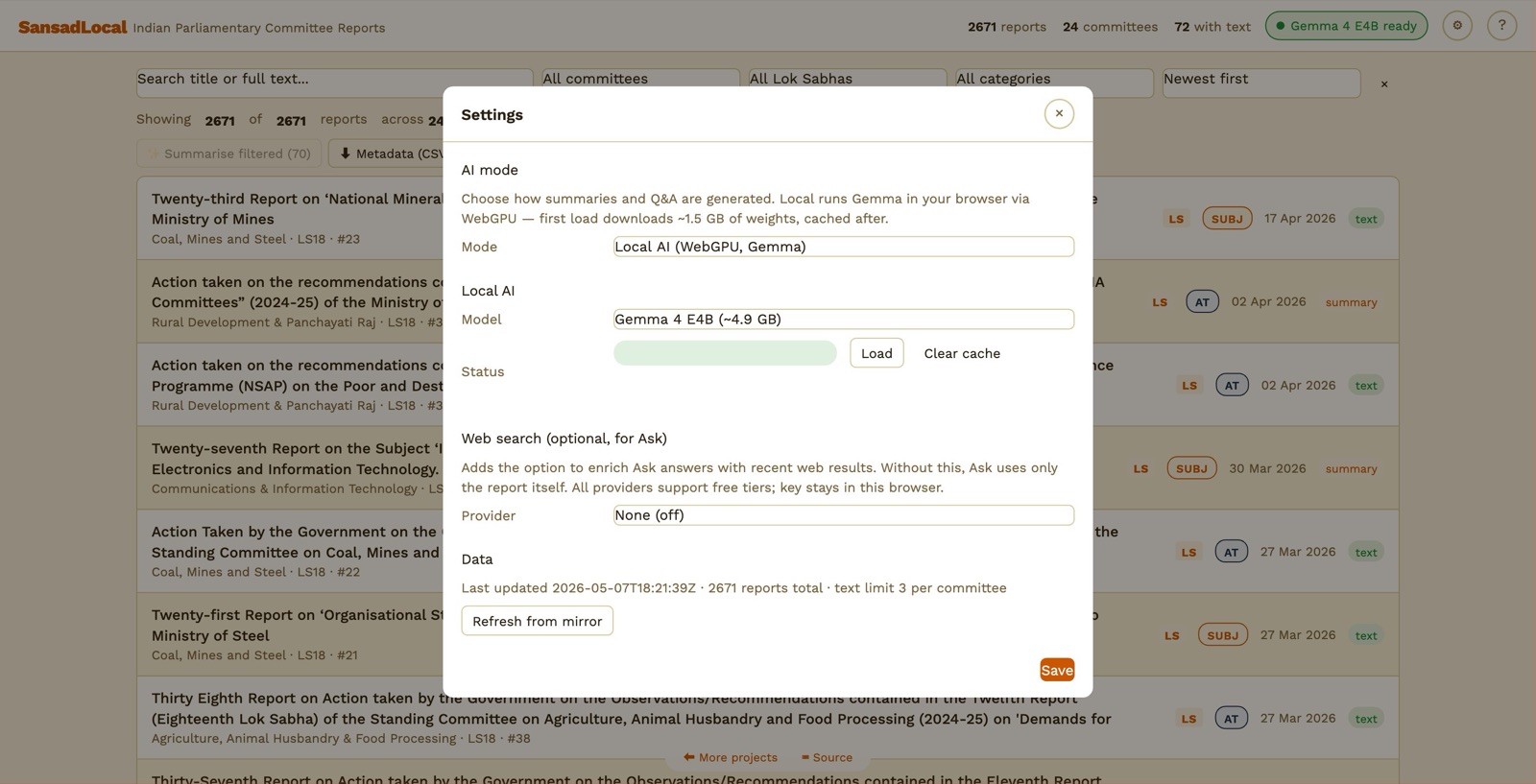
Settings → Local AI section.
Option A — Local AI (default, no key, free)
Runs an open-weight model entirely in your browser via Transformers.js on WebGPU. The first load downloads weights from Hugging Face; the browser caches them so subsequent visits are instant.
| Model | Size | Notes |
|---|---|---|
| Gemma 4 E2B | ~1.5 GB | Default. Good balance of quality and download size. |
| Gemma 4 E4B | ~4.9 GB | Stronger summaries; takes longer to download and longer per response. |
| Ternary Bonsai 1.7B | ~470 MB | Smallest download. Good for low-bandwidth or quick trials. |
| Ternary Bonsai 4B | ~1.1 GB | Sweet spot for quality vs. size on the Bonsai line. |
| Ternary Bonsai 8B | ~2.2 GB | Strongest Bonsai option. Needs a recent GPU; 64K context. |
- Open Settings. AI mode = Local AI.
- Pick a model from the dropdown.
- Click Load. First run shows a progress bar — your machine is downloading weights from Hugging Face.
- When the status pill says "<model> ready", you can use AI summary and Ask in any report dialog.
Option B — BYOK (Bring Your Own Key)
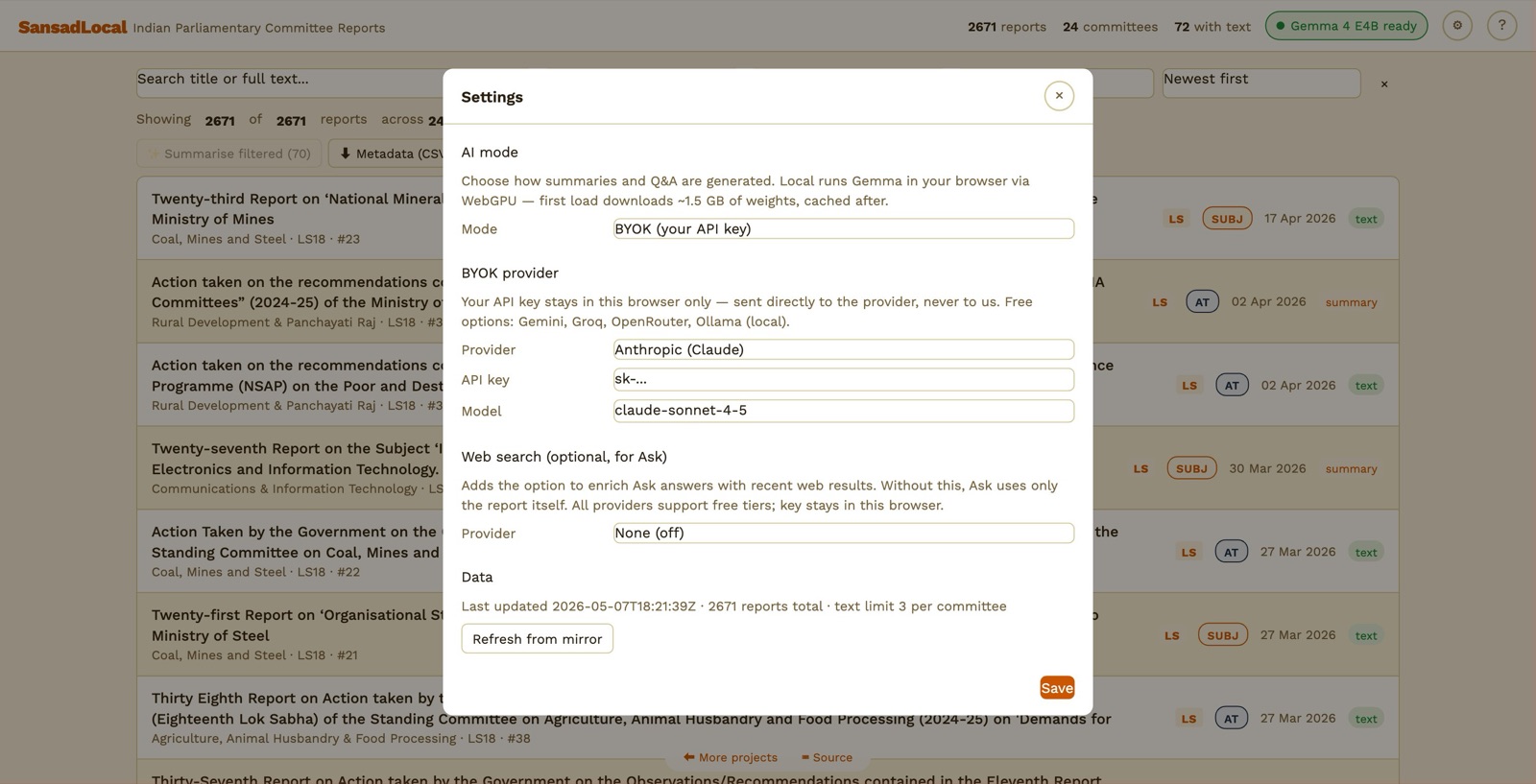
Settings → BYOK section. Provider list mirrors upstream ParliamentWatch.
Send the request directly from your browser to the provider you choose. Your key stays in this browser's localStorage — never sent to any other server.
- Open Settings. AI mode = BYOK.
- Pick a provider. Get a key from the provider's website (links in the table at §12 Costs & limits).
- Paste the key into the API key field. Optionally override the default model.
- Click Save. The pill turns to "BYOK: <Provider>".
7. Generating an AI summary
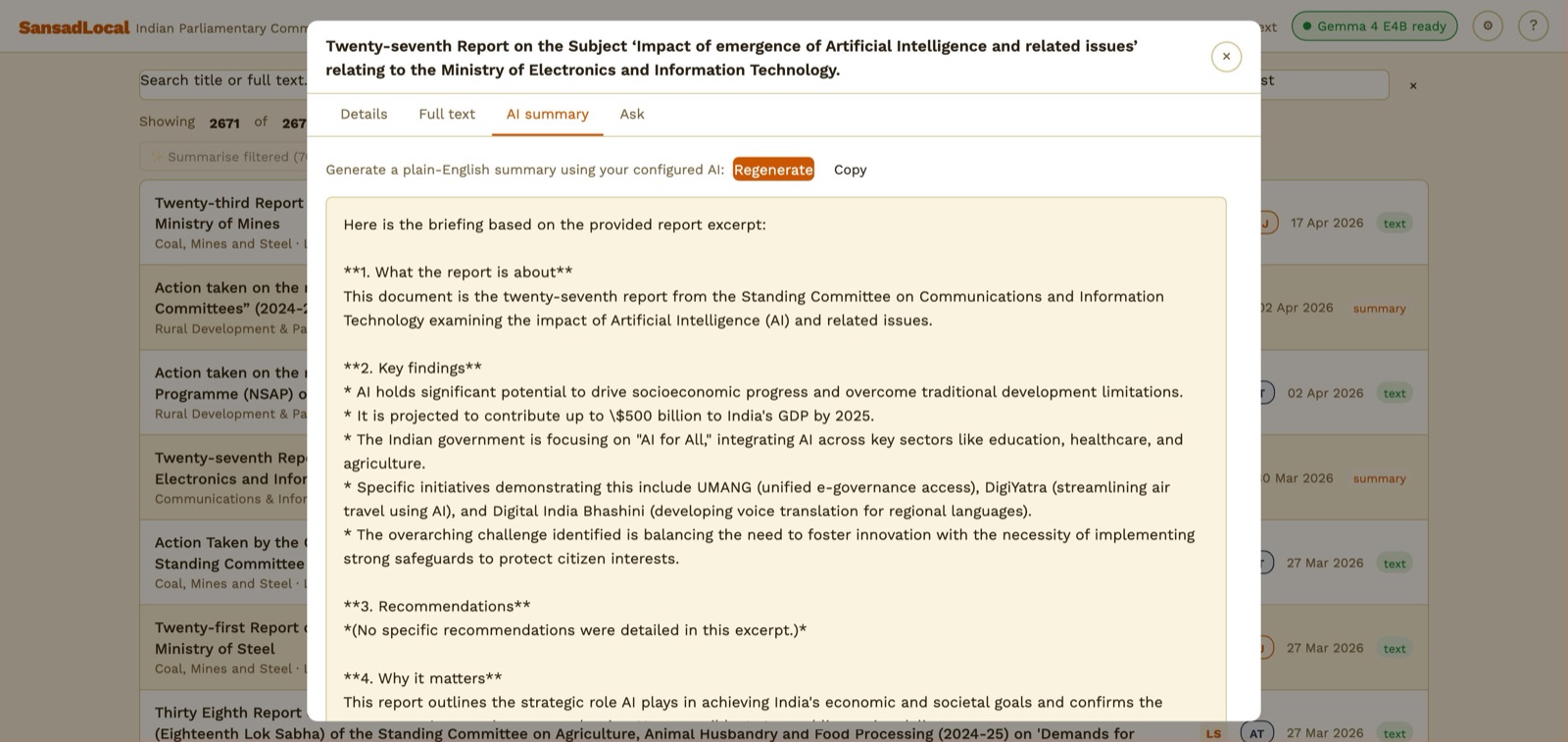
AI summary tab — a freshly-generated 4-section briefing.
- Make sure AI is configured (Local model loaded, or BYOK key saved).
- Click any report row to open the dialog.
- Switch to the AI summary tab.
- Click Generate. The model streams a 4-section plain-English briefing (what it's about, key findings, recommendations, why it matters).
- The summary is cached in your browser — opening that report again later shows it instantly. Click Regenerate for a fresh attempt.
8. Asking questions about a report
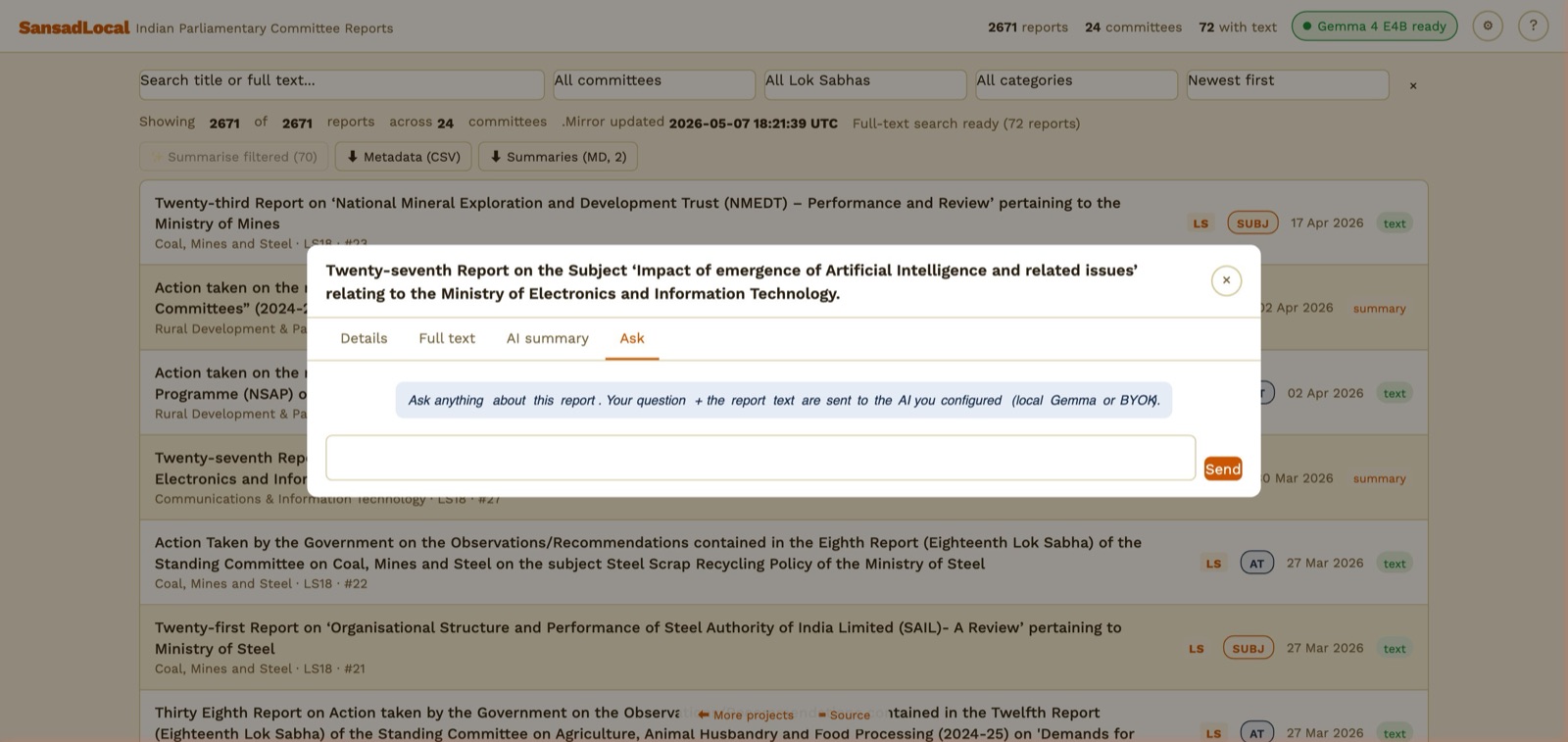
Ask tab — chat input scoped to the open report.
- From the dialog, switch to the Ask tab.
- Type a question. Press Enter or click Send.
- The model gets the report's full text (truncated to fit the context window) plus your cached summary if one exists. It answers from the report only.
- Each new question + answer is appended to the thread for the duration of the dialog. Closing the dialog resets the thread.
9. Web-search enrichment for Ask
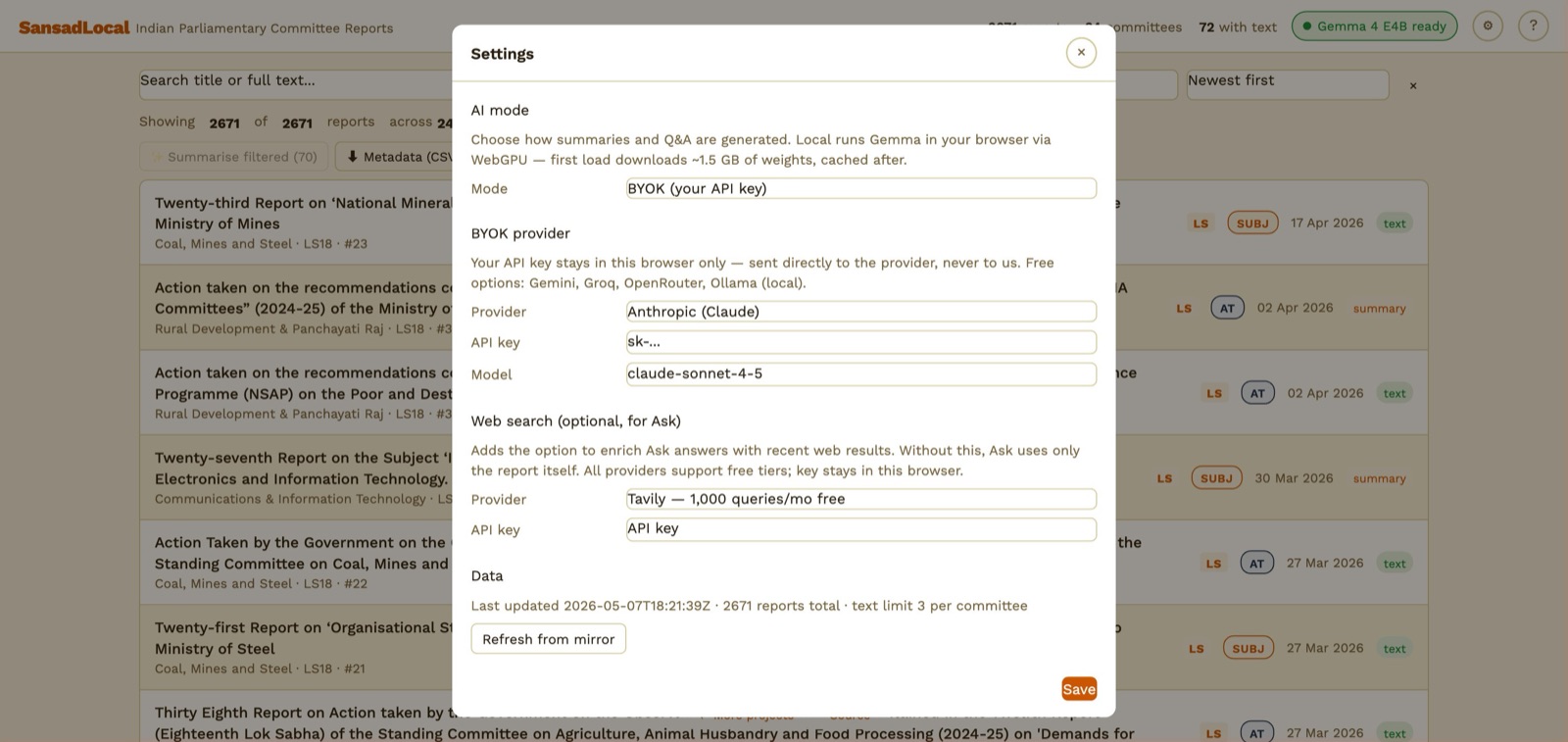
Settings → Web search section.
Optional. When configured, you get a 🌐 button next to Send in the Ask tab. Clicking it does a web search first and feeds the top results into the prompt alongside the report text. Useful for "is there recent news on this?" or "has the government acted on this since the report?" style follow-ups.
| Provider | Free tier | Where to get a key |
|---|---|---|
| Tavily | 1,000 queries/month | app.tavily.com |
| Brave Search | 2,000 queries/month | api.search.brave.com |
| SearXNG (self-hosted) | Unlimited (you run it) | Use any public instance with JSON output enabled, or self-host from github.com/searxng/searxng |
- Settings → Web search section.
- Pick a provider. For Tavily / Brave, paste your API key. For SearXNG, paste the instance URL (e.g.
https://searx.example.org). - Save. The 🌐 button appears in the Ask tab.
10. Exporting metadata and summaries
Two buttons live in the toolbar above the report list:
- ⬇ Metadata (CSV) — exports the currently filtered reports as CSV. 13 columns including
has_textandhas_summary. Useful for dropping into Excel / a notebook for analysis. - ⬇ Summaries (MD) — exports every AI summary you've generated as a single Markdown file, with each report headed by title + committee + LS + report number.
Both downloads happen client-side — nothing leaves your machine.
11. Deep search (optional)
By default, search hits report titles. The instant you open a report's Full text tab, that body becomes searchable too — and stays cached locally forever. If you want to search across the entire corpus' body content without opening reports one-by-one, enable Deep search in Settings — independently per corpus.
- Open Settings → scroll to the per-corpus search section for the corpus you want to deep-search.
- Tick "Enable full-text search across <corpus>". The estimate line tells you how much will download.
- Save. The app starts fetching every extracted text in the background (throttled). A small status appears below the filter row while it indexes.
- Once done, search hits body content for that corpus's full backfill. Cached locally — return visits use zero new bandwidth for it.
12. Privacy & what's cached locally
SansadSaar has no server. Everything you generate stays in your browser:
- API keys —
localStorage, never sent except to the provider you chose. - Generated summaries — IndexedDB store
summaries. Persistent across sessions. Visible in DevTools → Application → IndexedDB →sansadlocal(legacy DB name, kept so existing data carries over). - Extracted PDF text — IndexedDB store
texts. Once fetched, it's there for life. On return visits, only newly-published reports get pulled from the mirror. - Model weights — browser Cache Storage. ~1.5–4.9 GB depending on the model.
- Settings —
localStoragekeysansadlocal.settings.v1(legacy key, preserved across the rename).
What leaves your browser:
- Fetches to the data-mirror origins, all served as static assets from Cloudflare Workers:
sansadsaar-data.naklitechie.com— DRSC, CAG, FC, LC, Bills (the document-corpus mirror)sansadsaar-proceedings.naklitechie.com— Debates + Questionssansadsaar-gazettes.naklitechie.com— Central Gazette
- Click-through to
archive.orgwhen you open a Gazette's "View PDF" — that's a normal external link, the app doesn't proxy. - Fetches to
huggingface.co— model weights, only on first load of a given model. - BYOK requests go directly to your chosen provider. Your key isn't proxied anywhere.
- Search-enrichment requests go directly to your chosen search provider.
What never happens: no analytics, no accounts, no telemetry, no server logs (no server). The page is a static index.html served from Cloudflare Workers, on the custom domain.
13. Costs & limits — what's free, what isn't
Three layers of cost. The first is always free; the other two depend on your choice.
Layer 1 — SansadSaar infrastructure
| Component | Cost | Notes |
|---|---|---|
| The app itself | Free | Single static index.html, served via Cloudflare Workers Static Assets. |
| Scheduled scrapers | Free | GitHub Actions free tier. Eight corpora, eight crons — hourly to daily depending on upstream cadence. |
| Data hosting | Free | Three CF Workers Static Assets deployments (document-corpus + proceedings + gazettes). Under CF's free-tier file-count and bandwidth limits. |
| Custom domain (Cloudflare) | Free | Cloudflare DNS + Workers, free tier. |
Layer 2 — Local AI inference
| Model | Cost | Limits |
|---|---|---|
| Gemma 4 / Ternary Bonsai (any size) | Free | Runs on your GPU. Bandwidth: one-time download, then nothing. CPU/GPU time is yours. |
Layer 3 — BYOK API providers (optional)
| Provider | Free tier | Pay-as-you-go |
|---|---|---|
| Anthropic (Claude) | None — paid only. | ~$3/M input · $15/M output (Sonnet 4.5). A 50-page summary ≈ $0.05–$0.10. |
| OpenAI (GPT) | None on most models. Some accounts get $5 trial credit. | ~$0.15/M input · $0.60/M output (GPT-4o-mini). A summary ≈ $0.005. |
| Google Gemini | Yes. 15 req/min, 1M tokens/day free. Get a key at aistudio.google.com. | Above the free tier, ~$0.075/M input · $0.30/M output (Gemini 2.5 Flash). |
| Groq | Yes. Free tier with rate limits (~30 req/min). Inference is very fast (Llama 3.3 70B in seconds). Get a key at console.groq.com. | Pay tier available for higher rate limits. |
| OpenRouter | Yes. Free models (look for :free suffix in the model name). Get a key at openrouter.ai. |
Pay-as-you-go for premium models from many providers. |
| Ollama | Yes — fully free. Runs on your computer. Install from ollama.com, then ollama pull llama3.2. Set OLLAMA_ORIGINS=https://sansadsaar.naklitechie.com when starting Ollama so the browser can reach it. |
— |
| Custom OpenAI-compatible | Whatever your endpoint charges (or doesn't). | For self-hosted vLLM / LM Studio / Together.ai etc. |
Layer 3b — Web-search enrichment (optional)
| Provider | Free tier | Pay-as-you-go |
|---|---|---|
| Tavily | 1,000 queries/month | $10–$80/month for higher tiers. |
| Brave Search | 2,000 queries/month | From $3/CPM (1,000 queries). |
| SearXNG | Free, self-hosted | — |
14. Troubleshooting
The local model won't load
- Check the AI status pill — if it says "No WebGPU", the browser doesn't support WebGPU. Use Chrome 113+, Edge 113+, Brave, or Firefox 130+.
- If it shows "Worker error", open DevTools console for the underlying message (network failure, OOM, model file corruption). The "Clear cache" button in Settings forces a re-download.
Generation is slow
- Local AI on a CPU-only machine is slow — WebGPU on a recent GPU is needed for usable speed. Check
chrome://gpuin Chrome. - Long reports get truncated to fit the model's context window (8K for Gemma 4 E2B, 32K for Bonsai 1.7B/4B, 64K for Bonsai 8B). For very long reports, the larger Bonsai models or a BYOK provider produce better summaries.
Ollama returns CORS errors
Ollama's HTTP API doesn't allow cross-origin requests by default. Set OLLAMA_ORIGINS when starting Ollama:
OLLAMA_ORIGINS="https://sansadsaar.naklitechie.com" ollama serve
If you opened the app via http://localhost:8000 for local dev, set OLLAMA_ORIGINS=http://localhost:8000 instead.
The mirror is missing data
Each corpus has its own GitHub Action on its own schedule — DRSC daily, CAG / FC / LC / Bills daily, Debates 2-hourly, Questions hourly, Gazettes hourly. A new upstream record typically appears in SansadSaar within that corpus's next cycle. On a fresh visit, the latest data loads automatically; if you've linked Save-to-Disk, the staleness check picks up updates and re-syncs in the background.
Where do credits live?
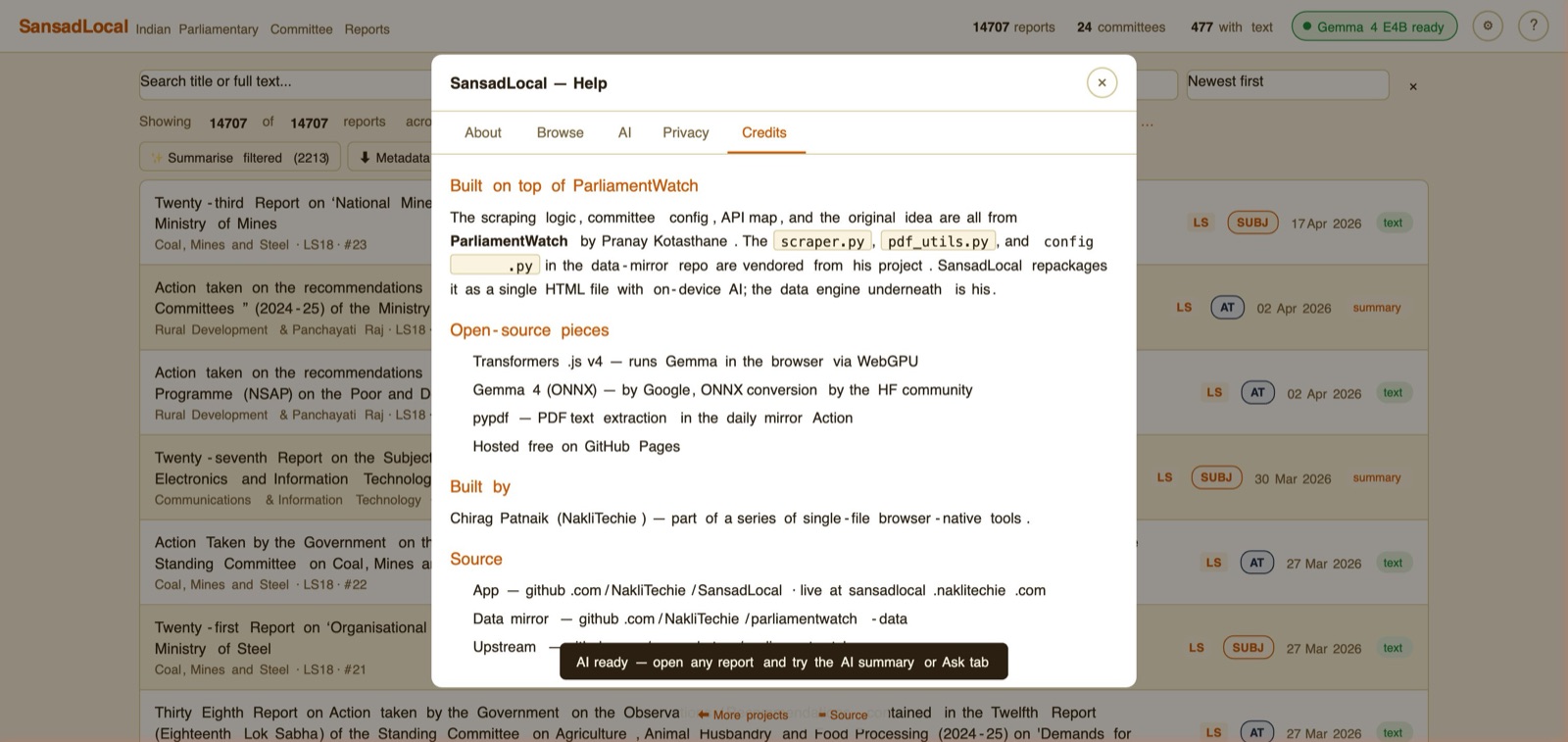
Help → Credits tab. Open from the ? button in the header.
Built on top of ParliamentWatch by Pranay Kotasthane — the original DRSC scraper, committee config, and core idea are his. The Gazettes corpus shape is inspired by egazette by Sushant Sinha (independently implemented; no code copied). SansadSaar repackages all of this with on-device AI and the additional corpora. Full credit list in the Help → Credits tab.